Launch options in 10 seconds
- -novidskips the intro video.
- -consoleconsole on. Open it with \.
- +fps_maxsets your FPS limit.
- 0VAC bans for using launch options.
Spaces between options. Not commas.
The Launch Options Generator Tool builds your Dota 2 launch options in one click: -novid, -console, FPS limit, Vulkan, resolution and more. Paste yours to find outdated ones.
// switch options on below, they appear here-novidSkips the introduction video when the game starts.-consoleTurns on the developer console. Open it in game with the \ key.-highGives Dota 2 priority CPU usage over other programs.+fps_max #Sets the maximum frames per second.-dx11Forces the game to run on DirectX 11.-vulkanRuns the game on Vulkan instead of DirectX.-map dotaLoads the Dota map right at launch, so the match loads faster once you find a game.-noprewarmStops the game from preloading resources at launch. They load when you join a match instead.-fullscreenStarts the game in fullscreen mode.-noborderStarts the game in a borderless window.-swStarts the game in a normal window.-w # -h #Forces the start resolution in pixels, width and height.-x # -y #Places a borderless window on the screen. Handy with several monitors.-nogammarampUses your desktop color profile, so tools like f.lux also work in fullscreen.-cursor_scale_percent #Changes the cursor size in percent. 100 is the default. Overrides the in-game setting.-useforcedmparms -noforcemaccel -noforcemspdUses your Windows mouse speed and acceleration instead of the game’s.-nosoundTurns off all in-game sound.-nomicsettingsStops Dota 2 from changing your microphone volume at launch.-sdlaudiodriver directsoundSets the audio API. Can fix a game that plays no sound.-language englishChanges the language of the game text and menus.-gamestateintegrationTurns on Game State Integration, which some overlays and stat apps need. Off by default.-enable_addonsLoads Valve-approved custom files (HUD, minimap, icons, cursors, sounds) from the game folder. Allowed in matchmaking.-autoconfigRestores video and performance settings to the defaults for your hardware.-safe_modeRestores the default rendering API and ignores your .cfg settings.-perfectworldLets you play on the Chinese Perfect World servers.-nomousegrabLinuxLets you alt-tab out of fullscreen on some Linux desktops.-sdl_displayindex #LinuxPicks the monitor on Linux, counting from 0 (your main screen).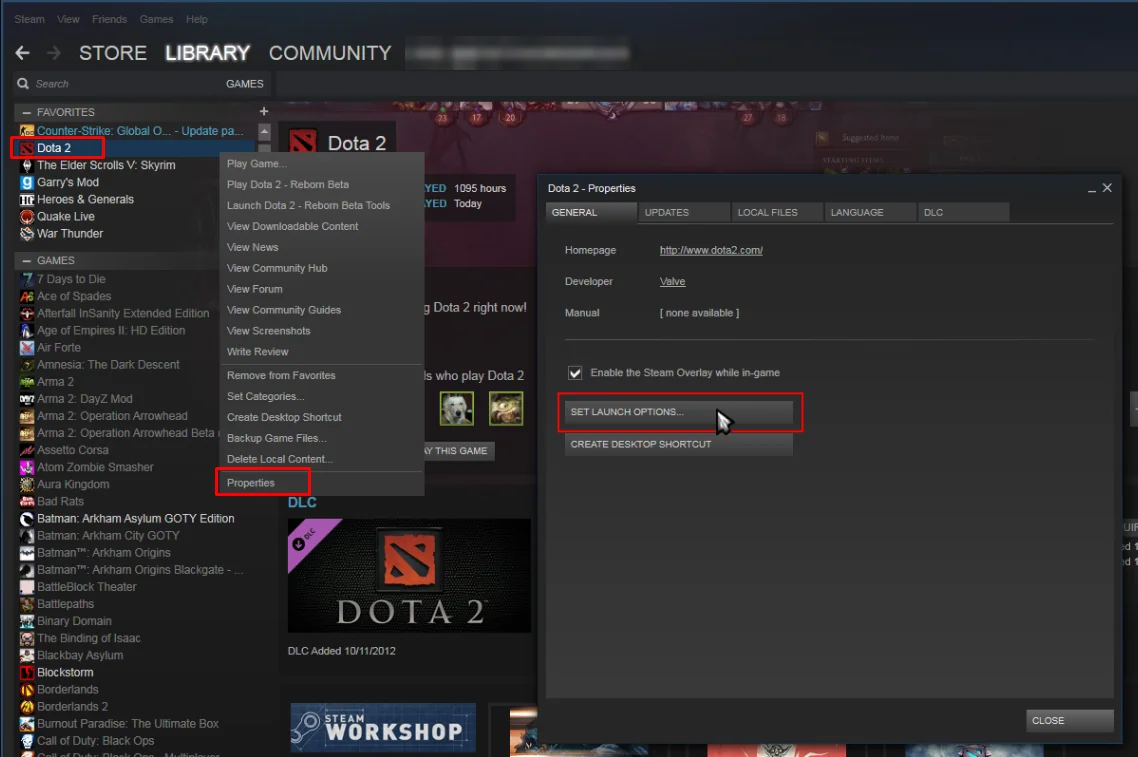
Older Steam versions show a “Set Launch Options…” button, newer ones a text field right on the General tab. Options are separated by spaces.

This tool is created with love for Dota 2 and for helping you to play better every day and rank up! Have Fun and Enjoy!
By Kevin “Kevin10k”·Dota 2 Expert · Mid & Offlane PlayerArticle updated
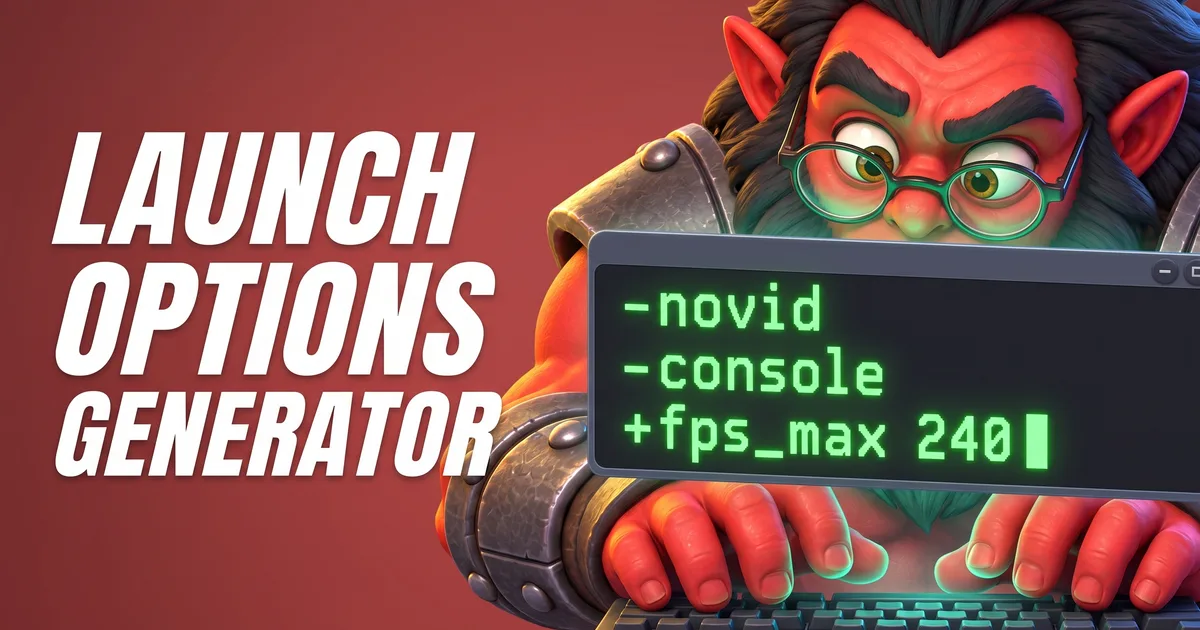
The Launch Options Generator Tool writes your Dota 2 launch options for you. Switch on what you want, copy one line, paste it into Steam. It also checks the options you already use and throws out the dead ones. Axe used to type them himself. Axe broke three keyboards.
Axe explains
Launch options in 10 seconds
Spaces between options. Not commas.
Options with a minus (-novid) are launch options. Options with a plus (+fps_max 144) are console commands that run when the game starts. Separate everything with spaces.
Every command you can put behind a + is in the Console Commands Lookup. For longer lists, an autoexec.cfg is the cleaner place: it runs by itself at every start.

Axe put commas between them once. Dota ignored Axe. Axe does not like being ignored. Use spaces.
There is no secret magic line. There are a few options almost everybody can use, and a few that depend on your PC.
-novidSkip intro videoSkips the introduction video when the game starts.-consoleEnable consoleTurns on the developer console. Open it in game with the \ key.+fps_max <number>FPS limitSets the maximum frames per second.-map dotaPreload the mapLoads the Dota map right at launch, so the match loads faster once you find a game.-vulkanVulkanRuns the game on Vulkan instead of DirectX.-highHigh CPU priorityGives Dota 2 priority CPU usage over other programs.Start with -novid -console. Add an FPS limit that fits your monitor. Then test -vulkan against -dx11 for a few games and keep the one that runs smoother on your PC.
Want to add friends? The Steam ID to Dota ID Converter finds any Friend ID.
All set up and ready for the next thousand hours? The Hours Played Calculator shows how many you already have.
Let Axe be honest: no launch option doubles your FPS. Old guides that promise it are selling air. What launch options can do is small and real:
-vulkan or -dx11. Some PCs run better on one, some on the other. Test both.+fps_max. A steady limit near your monitor’s refresh rate keeps the game smooth and your PC cooler.-high if other programs run in the background.-map dota. The game takes longer to start, but the map is ready when you find a match.-autoconfig for one launch if your settings are a mess. Remove it afterwards.On a low end PC, the graphics settings inside the game (resolution and quality) make the biggest difference. Launch options are the small extra on top.
-fullscreen, -noborder or -sw start the game in fullscreen, a borderless window or a normal window. Use only one.-w 1920 -h 1080 forces the start resolution. Handy when the game starts at a size your monitor does not like.-x and -y place a borderless window, for example on your second monitor.-nogammaramp keeps your desktop color profile, so tools like f.lux also work in fullscreen.Every launch option the tool offers, with what it does. Numbers in angle brackets are values you choose.
-novidSkip intro video. Skips the introduction video when the game starts.-consoleEnable console. Turns on the developer console. Open it in game with the \ key.-highHigh CPU priority. Gives Dota 2 priority CPU usage over other programs.+fps_max <number>FPS limit. Sets the maximum frames per second.-dx11DirectX 11. Forces the game to run on DirectX 11.-vulkanVulkan. Runs the game on Vulkan instead of DirectX.-map dotaPreload the map. Loads the Dota map right at launch, so the match loads faster once you find a game.-noprewarmNo preloading. Stops the game from preloading resources at launch. They load when you join a match instead.-fullscreenFullscreen. Starts the game in fullscreen mode.-noborderBorderless window. Starts the game in a borderless window.-swWindowed. Starts the game in a normal window.-w <number> -h <number>Resolution. Forces the start resolution in pixels, width and height.-x <number> -y <number>Window position. Places a borderless window on the screen. Handy with several monitors.-nogammarampDesktop color profile. Uses your desktop color profile, so tools like f.lux also work in fullscreen.-cursor_scale_percent <number>Cursor size. Changes the cursor size in percent. 100 is the default. Overrides the in-game setting.-useforcedmparms -noforcemaccel -noforcemspdWindows mouse settings. Uses your Windows mouse speed and acceleration instead of the game’s.-nosoundNo sound. Turns off all in-game sound.-nomicsettingsKeep mic settings. Stops Dota 2 from changing your microphone volume at launch.-sdlaudiodriver directsoundAudio driver. Sets the audio API. Can fix a game that plays no sound.-language englishGame language. Changes the language of the game text and menus.-gamestateintegrationGame State Integration. Turns on Game State Integration, which some overlays and stat apps need. Off by default.-enable_addonsCustom addons. Loads Valve-approved custom files (HUD, minimap, icons, cursors, sounds) from the game folder. Allowed in matchmaking.-autoconfigReset video settings. Restores video and performance settings to the defaults for your hardware. Remove -autoconfig after one start, or it resets your settings every time.-safe_modeSafe mode. Restores the default rendering API and ignores your .cfg settings. Remove -safe_mode once the game starts fine again.-perfectworldPerfect World servers. Lets you play on the Chinese Perfect World servers.-nomousegrabLinux: alt-tab fix. Lets you alt-tab out of fullscreen on some Linux desktops.-sdl_displayindex <number>Linux: monitor. Picks the monitor on Linux, counting from 0 (your main screen). Free tool · Dota2FreaksMMR Calculator: how far is your rank goal?Game runs smooth now? Set your rank goal and see how many games and how much time it could take to get there.
Many guides still list options that Valve removed years ago. They do nothing now, or worse. Paste your line into Check yours and the tool removes them.
-dx9DirectX 9 was retired in November 2021. Dota 2 runs on DirectX 11 or Vulkan.-prewarmRemoved in August 2020. Preloading is on by default now.-32bitDota 2 dropped 32-bit systems in November 2021.-windowedOld flag. Use -sw or the display setting in the game.-dashboardThe old dashboard themes are gone since Dota 2 Reborn.-glOpenGL is no longer supported on Windows since November 2021.-xaudioNative XAudio support was removed in November 2021. SDL audio is the default.Old guides also love options like -threads or -useallavailablecores. They are not on the list of documented Dota 2 launch options, so the checker marks them as unknown. If you do not know why an option is there, remove it.
No. Launch options and console commands are part of the game. Using them does not lead to a VAC ban. Bans come from cheats, scripts and programs that hook into the game, not from -novid. Axe checked. Axe is still here.
Smooth game, no ban. Now the only thing between you and the next rank is how you play.
 Free guide · Dota2FreaksRank Up Guide: find the one thing holding you backFive quick questions about your role, your lane and your losses. You get one habit to fix and a free mission for your next three games.
Open Steam, go to your Library, right-click Dota 2 and choose Properties. On the General tab you find the Launch Options field. Paste your options there, separated by spaces, and start the game.
The safe basics are -novid to skip the intro video and -console to turn on the console. Everything else depends on your PC: an FPS limit with +fps_max, -vulkan or -dx11 to pick the graphics API, and -map dota to load matches faster.
No launch option doubles your FPS. What can help: try -vulkan against -dx11 and keep the faster one, set a sensible limit with +fps_max, and give the game priority with -high. The graphics settings in the game matter more.
Add -console to your launch options (or turn the console on in the game’s advanced options) and press the \ key in game.
No. Using launch options or console commands does not lead to a VAC ban.
No. Valve removed -prewarm in August 2020 and made preloading the default. Use -noprewarm if you want to turn preloading off.
Data: Valve's official Dota 2 datafeed · updated
Axe wants cookies.